Windows Security (sometimes still called the Windows Security Center) is the built-in dashboard for Microsoft Defender Antivirus, the firewall, and related protections. It is free, has no ads, and is appropriate as the main security tool for most home and school PCs. The screenshots below follow the left-hand menu in the app—use them together with the notes in this page.
Opening Windows Security
- Press the Windows key, type
Windows Security, then pressEnter. - Or open Settings (
Win + I): on Windows 11 use Privacy & security > Windows Security > Open Windows Security; on Windows 10 use Update & Security > Windows Security > Open Windows Security.
What each area is for
- Home (Security at a glance): Summary cards for the main modules. A green check usually means no action needed; a yellow warning suggests a setting to review (for example, sign-in recommendations or blocking of potentially unwanted apps).
- Virus & threat protection: Run Quick scan, Full scan, or custom scans; manage real-time protection and updates. If you install another antivirus, Windows often turns Defender’s real-time protection over to that product—this page still shows overall status and links such as Open app and Microsoft Defender Antivirus options (for example, optional periodic scanning).
- Firewall & network protection: Confirms the firewall for Domain, Private, and Public profiles. The label (active) shows which profile matches your current connection. Use Allow an app through firewall when a trusted program is blocked; use Advanced settings only if you understand network rules.
- App & browser control: Reputation-based protection helps block malicious or potentially unwanted apps (PUA)—if you see a warning that PUA blocking is off, consider turning it on. This page also links to Exploit protection and optional Application Guard features where supported.
- Device security: Reports hardware-related features such as Core isolation / virtualization-based security and the security processor (TPM). Messages like “Standard hardware security not supported” depend on your PC model and firmware—use the built-in “Learn more” links for details.
- Device performance & health: A simple health report (storage, battery, apps, time service). Fresh start can reinstall Windows while keeping personal files; treat it as an advanced step and back up important data first.
- Family options: Shortcuts to Microsoft family features (screen time, activity reports). Use View family settings to manage accounts in the browser; availability varies by region.
Illustrated tour
Swipe or use the arrows to move between screenshots. Double-click an image to enlarge it.
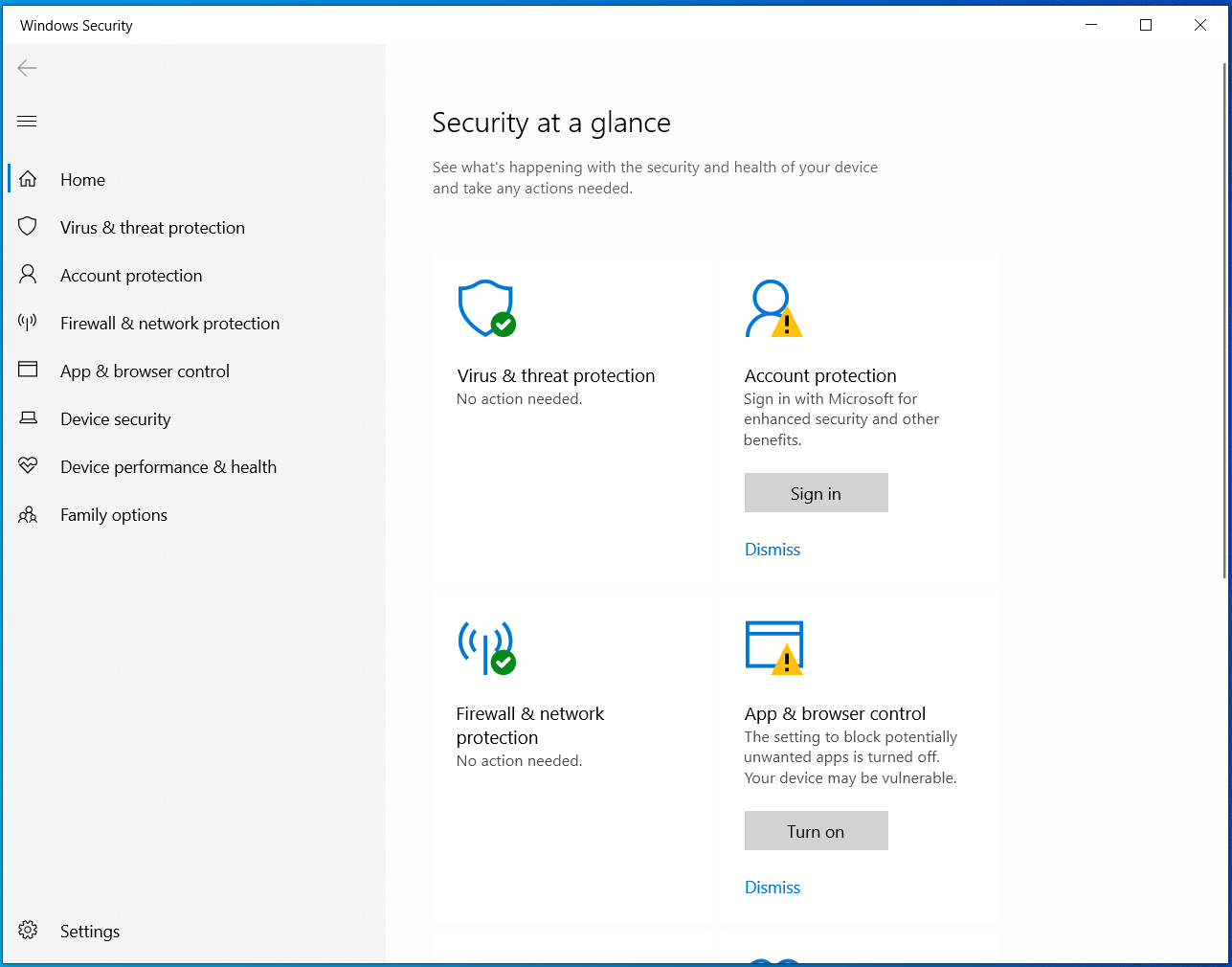
Home — Overview of each module; follow the prompts on yellow warning tiles or use the left menu to open a section.
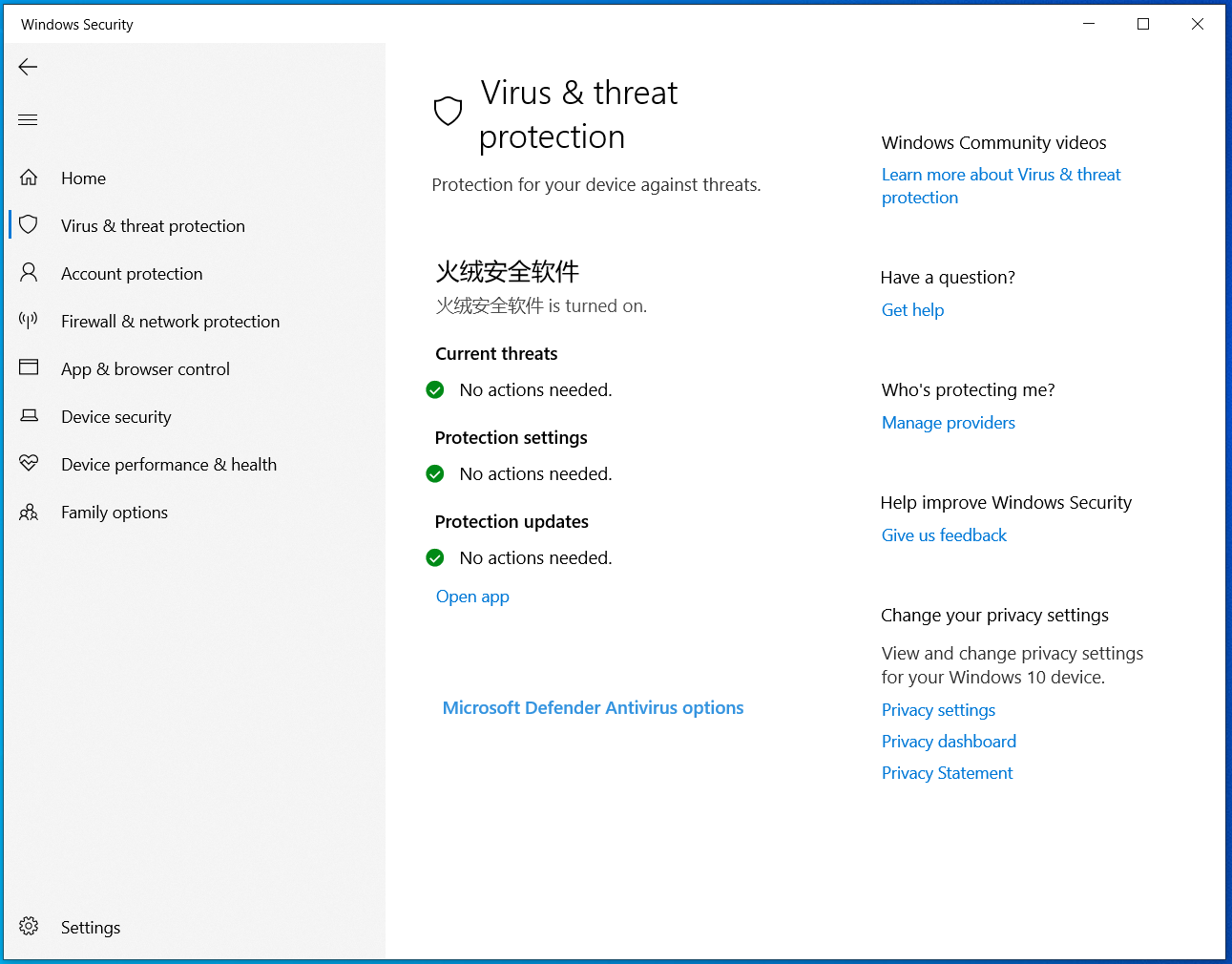
Virus & threat protection — Scan and settings; with another AV installed, Windows may show that product as “on” while Defender options remain available below.
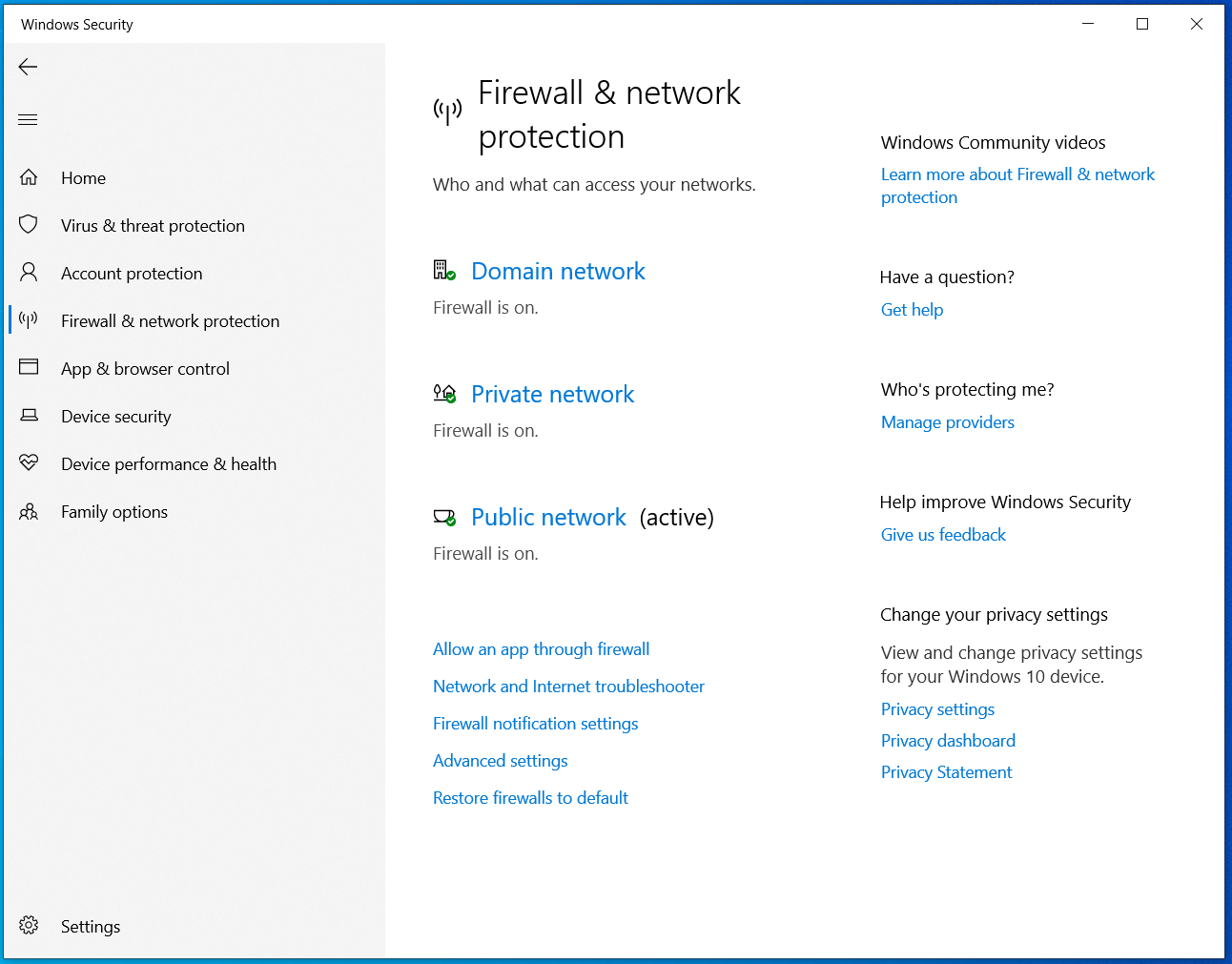
Firewall & network protection — Check that the firewall is on for your active profile; open allow-list or advanced tools from the links shown.
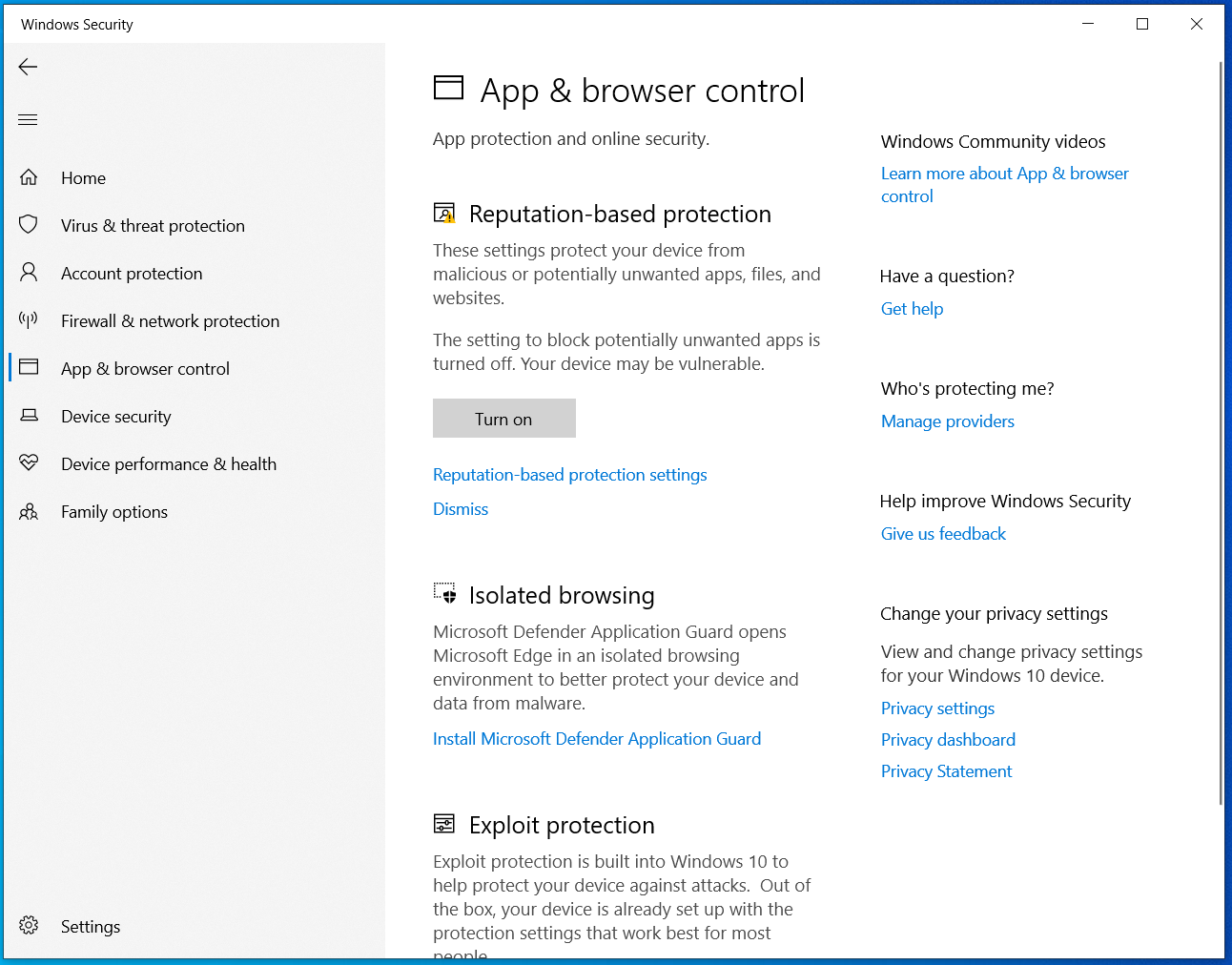
App & browser control — Turn on reputation / PUA protection when recommended; review Exploit protection and optional isolated browsing for Edge where available.
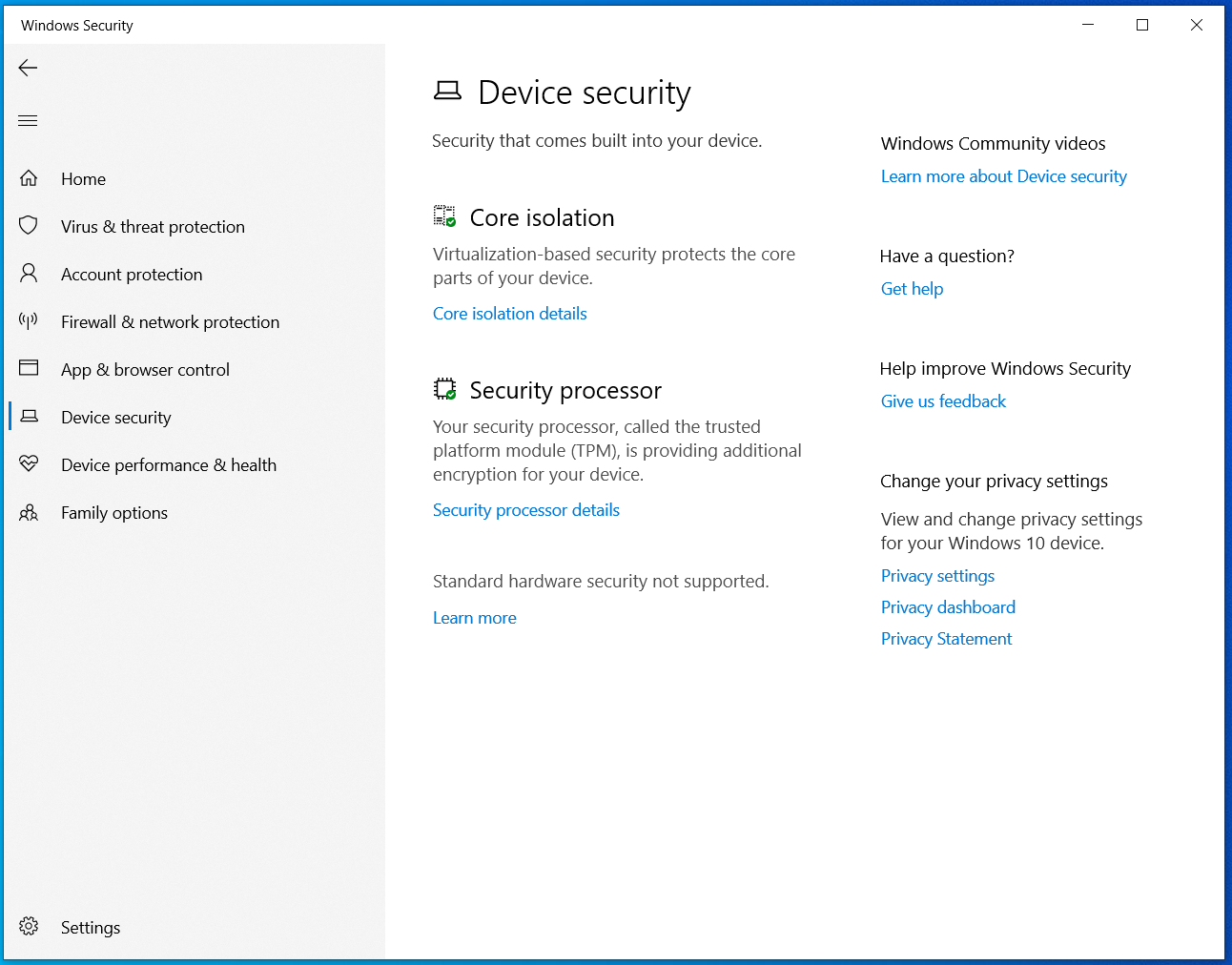
Device security — Hardware-backed features; wording depends on CPU, firmware, and Windows edition.
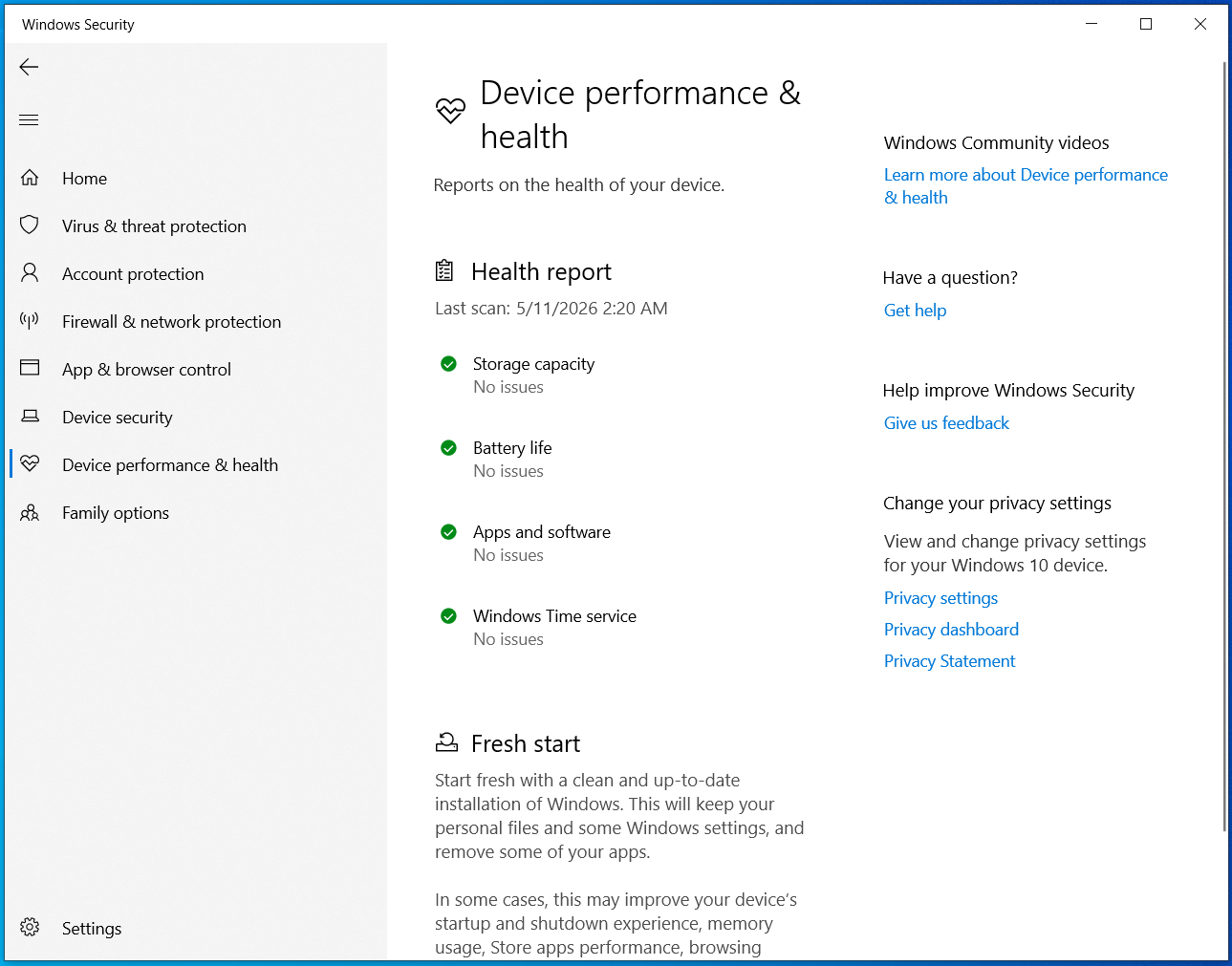
Device performance & health — Quick wellness check; use Fresh start only after reading what it removes and backing up.
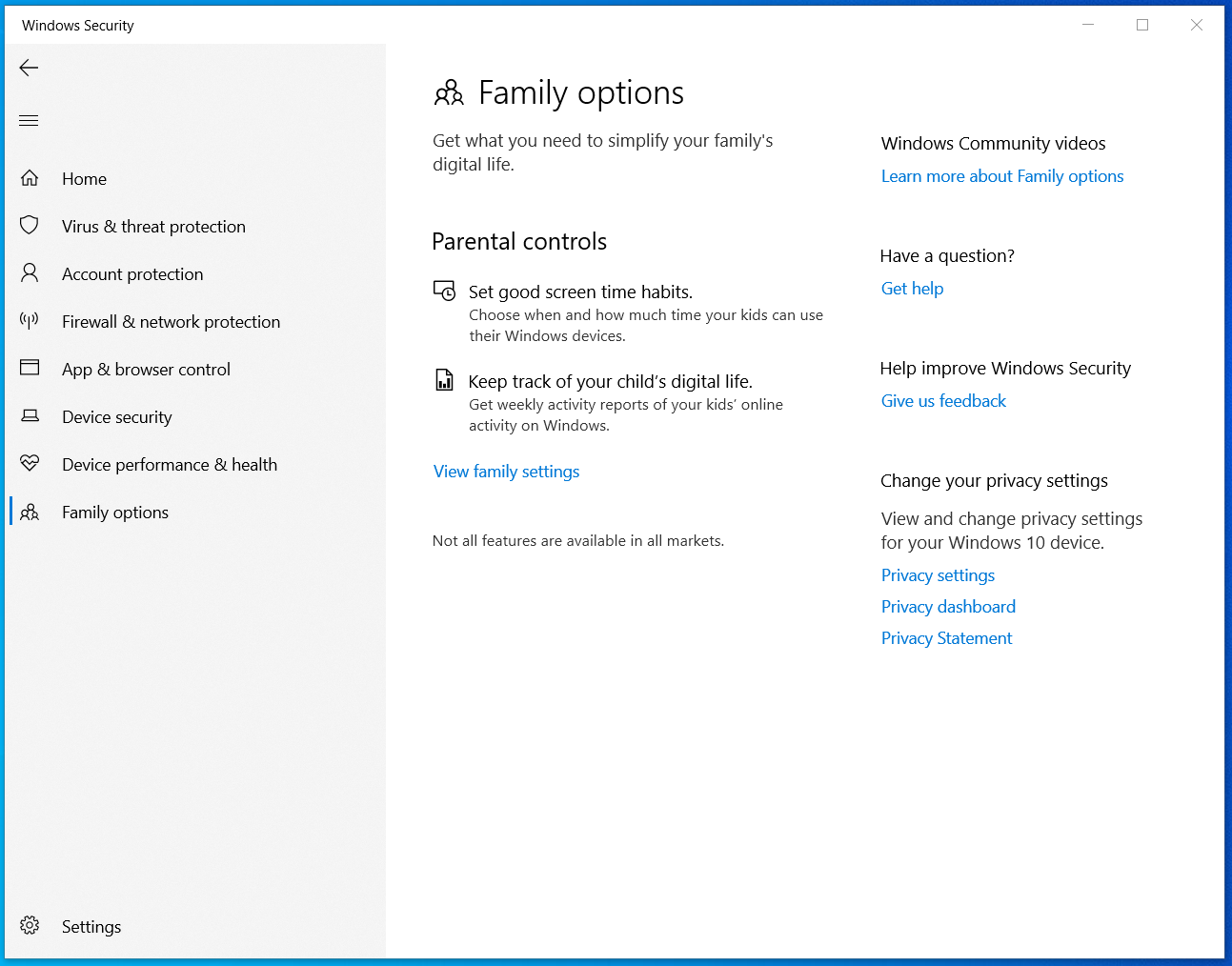
Family options — Entry point to Microsoft family settings for child accounts and activity reports.
Practical tips: Keep Windows Update current so Defender definitions and security patches arrive automatically. Avoid installing two real-time antivirus products at once unless you know how they interoperate. If something looks suspicious, run a scan from this app before downloading random “cleaner” utilities from the web.