RAM (Random Access Memory) is the computer’s “temporary workspace.” It holds the data and program code the CPU (section 1.1) is actively using right now—open apps, browser tabs, and Windows itself all live in RAM while the PC is on. RAM is much faster than a hard drive or SSD, but it is volatile: everything on the workspace disappears when you shut down or lose power, so important files must be saved to permanent storage.
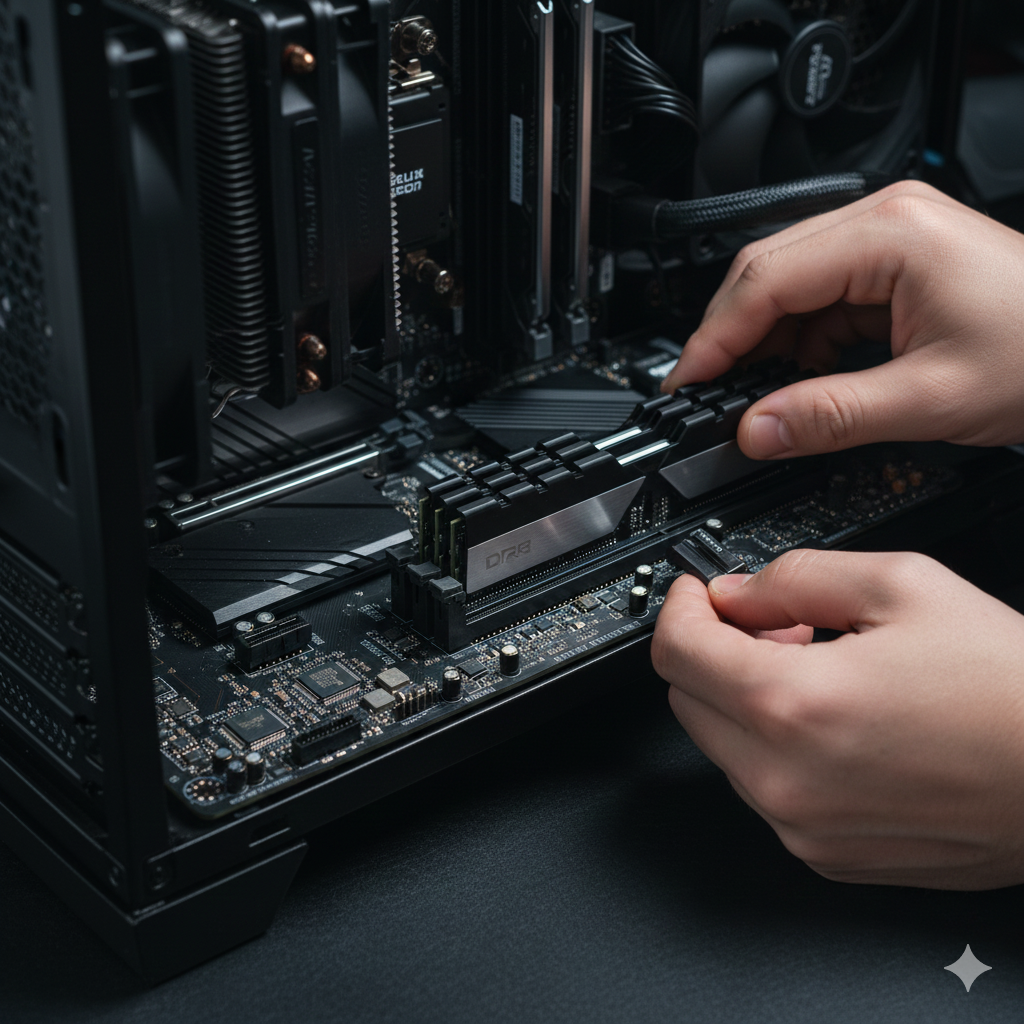
What RAM does
- Feeds the CPU: Instructions and data move from storage into RAM so the processor can work at full speed.
- Multitasking: Each open app and tab uses RAM; more capacity means more room before the system slows down.
- Caches recent work: Undo buffers, unsaved documents in memory, and video playback buffers sit in RAM until you save or close.
- Not long-term storage: RAM is not where photos and documents are kept permanently—that is the SSD/HDD.
RAM vs. storage vs. page file
| Type | Speed | Keeps data after shutdown? | Analogy |
|---|---|---|---|
| RAM | Very fast | No (volatile) | Desk you are working on now |
| SSD / HDD | Slower than RAM | Yes | Filing cabinet / warehouse |
| Page file (virtual memory) | Slow (uses disk) | Yes (on disk) | Overflow tray when the desk is full |
When RAM fills up, Windows moves less-used data to the page file on disk. Heavy paging feels like stuttering—often a sign you need more RAM or fewer open programs.
Volatility—save your work
-
Power off = RAM cleared
Unsaved work in an app is lost unless the program has auto-save or recovery. Use
Ctrl + Soften; let Windows shut down normally rather than pulling the plug.
How much RAM do you need?
| Installed RAM | Typical use |
|---|---|
| 4 GB | Minimum for very light browsing; modern Windows 10/11 feels tight—close apps frequently |
| 8 GB | Office, email, video calls, moderate browser use—acceptable for many students and home users |
| 16 GB | Comfortable multitasking: many tabs + Office + light photo/video editing |
| 32 GB+ | Heavy editing, virtual machines, development, gaming with many background apps |
Do not confuse RAM (GB of memory) with storage (GB of disk space) on a sales sticker—“256 GB SSD” is storage, not RAM.
Specs you may see
- Capacity: 8 GB, 16 GB, 32 GB—total workspace size (most important for beginners).
- DDR4 / DDR5: Memory generation; must match motherboard/laptop— not interchangeable casually.
- Speed (MHz): e.g., DDR4-3200—higher can help slightly; capacity matters more for daily feel.
- Form factor: DIMM sticks in desktop PCs; SO-DIMM smaller modules in laptops (often not user-upgradeable on thin models).
- Dual channel: Two matching sticks (e.g., 2×8 GB) can be faster than one 16 GB stick—common on desktops.
Signs you may need more RAM
- Switching between apps takes several seconds; fan spins up constantly.
- Task Manager shows memory at 85–100% during normal work.
- Disk light stays on hard—Windows is paging heavily to the SSD/HDD.
- Browser warns “out of memory” or tabs reload themselves.
- Adding RAM helps more than a faster CPU if the PC already has enough processor power but runs out of workspace.
Check RAM in Windows
- Settings:
Win + I> System > About — see Installed RAM (e.g., 16.0 GB). - Task Manager:
Ctrl + Shift + Esc> Performance > Memory — view total, in use, available, and speed; see which apps use the most on the Processes tab (sort by Memory). - Resource Monitor (optional): Task Manager > Performance > Open Resource Monitor for detailed breakdown.
Tips for smoother daily use
- Close browser tabs and apps you are not using—each one consumes RAM.
- Restart the PC weekly to clear memory leaks from long-running programs.
- Disable unnecessary Startup apps (Task Manager > Startup) so RAM is free after boot.
- Before buying a laptop, check whether RAM is soldered (cannot upgrade later) or has an empty slot.
- Pair enough RAM with a decent CPU (1.1) and SSD— all three affect how “fast” Windows feels.
Remember: RAM is the desk, the CPU is the brain, storage is the filing cabinet. A bigger desk lets you spread out more projects at once—but always save important files to disk before shutting down.