The CPU (Central Processing Unit) is the computer’s “super brain.” It is a chip on the motherboard that executes program instructions—math, logic, and control—billions of times per second. Everything you do on Windows—opening apps, typing, browsing, video calls—ultimately depends on the CPU working with memory (section 1.2) and storage.
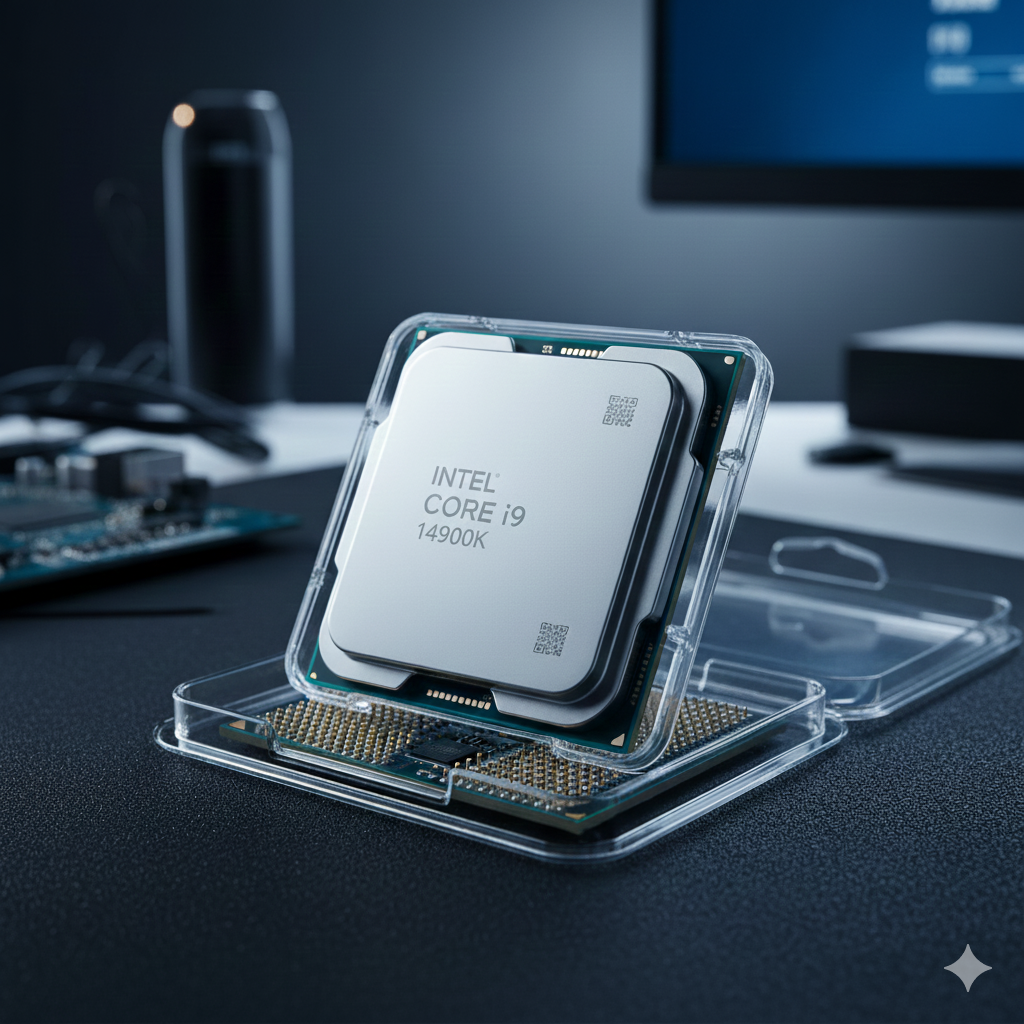
What the CPU does
- Runs programs: Word, Chrome, games, and Windows itself are lists of instructions the CPU executes.
- Calculates: Spreadsheets, photo filters, and 3D graphics all start with CPU work (heavy graphics also use the GPU).
- Coordinates hardware: Decides when to read from disk, send data over the network, or display pixels on the monitor.
- Responds to you: Every click and keystroke becomes instructions the CPU processes.
How it works (simple view)
-
1. Fetch
The CPU reads the next instruction from RAM (temporary workspace—see 1.2).
-
2. Decode
It figures out what the instruction means (add numbers, compare values, jump to another step).
-
3. Execute
It performs the action and stores the result, then repeats—billions of times per second.
CPU vs. other chips
| Component | Role | Analogy |
|---|---|---|
| CPU | General-purpose instructions for the whole system | Brain—decides and calculates |
| RAM (1.2) | Fast temporary data the CPU is using right now | Desk workspace |
| GPU (graphics card) | Parallel math for 3D games and video rendering | Specialist artist for visuals |
| SSD / HDD | Permanent storage when power is off | Filing cabinet |
Specs beginners see on a PC box
| Term | Meaning | Practical note |
|---|---|---|
| Cores | Independent processing units inside one CPU chip | More cores help when many apps run at once (browser + Office + video call) |
| Threads | Virtual cores (often 2 threads per core with hyper-threading) | Improves multitasking; not the same as doubling physical cores |
| Clock speed (GHz) | How many cycles per second each core can run | Higher GHz can mean snappier single tasks; compare same generation only |
| Cache | Ultra-fast memory on the CPU die | Larger cache can speed repeated work; usually listed for enthusiasts |
| Generation / model | e.g., Intel Core i5-13400, AMD Ryzen 5 5600 | Newer generations are usually faster and more efficient at similar names |
Major CPU brands (Windows PCs)
- Intel Core (i3 / i5 / i7 / i9, Core Ultra)—very common in laptops and desktops worldwide.
- AMD Ryzen (3 / 5 / 7 / 9)—strong competition; popular in custom-built and gaming PCs.
- Qualcomm Snapdragon—appears in some newer Arm-based Windows laptops (long battery life).
- Apple Silicon (M-series)—used in Macs, not standard Windows PCs; listed so you do not confuse specs when comparing with friends.
When a stronger CPU matters
- Everyday office & web: Modern entry-level CPUs (Core i3 / Ryzen 3 or better) are usually fine.
- Many tabs and apps open: More cores and enough RAM (1.2) reduce stutter.
- Video editing, 3D, compiling code: Higher-end Core i7/i9 or Ryzen 7/9 save time.
- Gaming: CPU and GPU both matter; weak CPU can limit frame rates in complex scenes.
- Older or budget CPU: Windows still runs, but updates and heavy sites feel slower—adding RAM helps only up to a point.
Check your CPU in Windows
- Settings:
Win + I> System > About — read Processor (full model name). - Task Manager:
Ctrl + Shift + Esc> Performance tab > CPU — see current speed, utilization %, and core count graph. - System Information: Press
Win + R, typemsinfo32, pressEnter— detailed hardware list.
If CPU usage stays near 100% while the PC feels slow, too many programs may be running—or the CPU may be undersized for the workload. Close unused apps or check Task Manager to see which process is busiest.
Performance and user experience
- A more capable CPU means faster response when opening software, switching tasks, and handling large documents.
- The CPU cannot work alone—it needs enough RAM and a fast SSD to avoid bottlenecks (a slow disk makes even a fast CPU wait).
- Keep Windows updated and avoid excessive startup programs (see Task Manager > Startup) so the CPU is free for work you care about.
Remember: The CPU is the brain, but RAM is the desk and storage is the filing cabinet. For smooth daily use, balance all three—not just the CPU model on the sticker.