An input method editor (IME) is how you type characters that are not on a standard keyboard—or how you switch between languages. Windows ships with Microsoft keyboards and IMEs for dozens of languages. You add the ones you need in Settings; no extra download is required for most built-in options.
Built-in Microsoft input methods
After you add a language in Settings, Windows installs the matching keyboard or IME. Names may vary slightly by Windows version.
| Language | Microsoft input method | Notes |
|---|---|---|
| ENEnglish | Microsoft English (US / UK / other layouts) | Default on most PCs. US QWERTY is the most common layout. |
| 中Chinese (Simplified) | Microsoft Pinyin | Type roman letters; choose characters from a candidate list. Supports full pinyin and initials. |
| 中Chinese (Traditional) | Microsoft Bopomofo / Microsoft Changjie | Used in Taiwan and Hong Kong. Bopomofo (注音) is common for learners. |
| ESSpanish | Spanish keyboard (Spain / Latin America) | Includes ñ and accented vowels (á, é, í, ó, ú). |
| FRFrench | French keyboard (AZERTY) | Standard layout in France and parts of Africa; different key positions from QWERTY. |
| DEGerman | German keyboard (QWERTZ) | Includes ä, ö, ü, and ß. |
| JAJapanese | Microsoft IME (Japanese) | Type romaji; convert to hiragana, katakana, or kanji. |
| KOKorean | Microsoft IME (Korean) | Hangul composition via standard Korean keyboard layout. |
| ARArabic | Arabic keyboard | Right-to-left typing; multiple regional variants available. |
| PTPortuguese | Portuguese (Brazil / Portugal) | Brazilian ABNT2 layout is the most common in South America. |
| RURussian | Russian keyboard (Cyrillic) | Standard ЙЦУКЕН layout. |
| ITItalian | Italian keyboard | QWERTY-based layout with accented characters. |
| HIHindi | Hindi (Devanagari INSCRIPT / Phonetic) | Phonetic option maps Latin keys to Devanagari letters. |
Optional third-party IMEs
- Sogou Pinyin / WeChat Keyboard: Popular in China for larger vocabularies and skins; watch for optional ads or bundled software during install.
- Google Japanese Input: Alternative Japanese IME some users prefer over Microsoft's.
- General advice: Built-in Microsoft IMEs are ad-free and sufficient for most users. Install third-party tools only when you need a specific feature.
How to add a language and input method
Adding a language installs its display options and at least one keyboard or IME. You can add several languages and switch between them while typing.
Swipe or use the arrows to follow each step. Double-click an image to enlarge it.
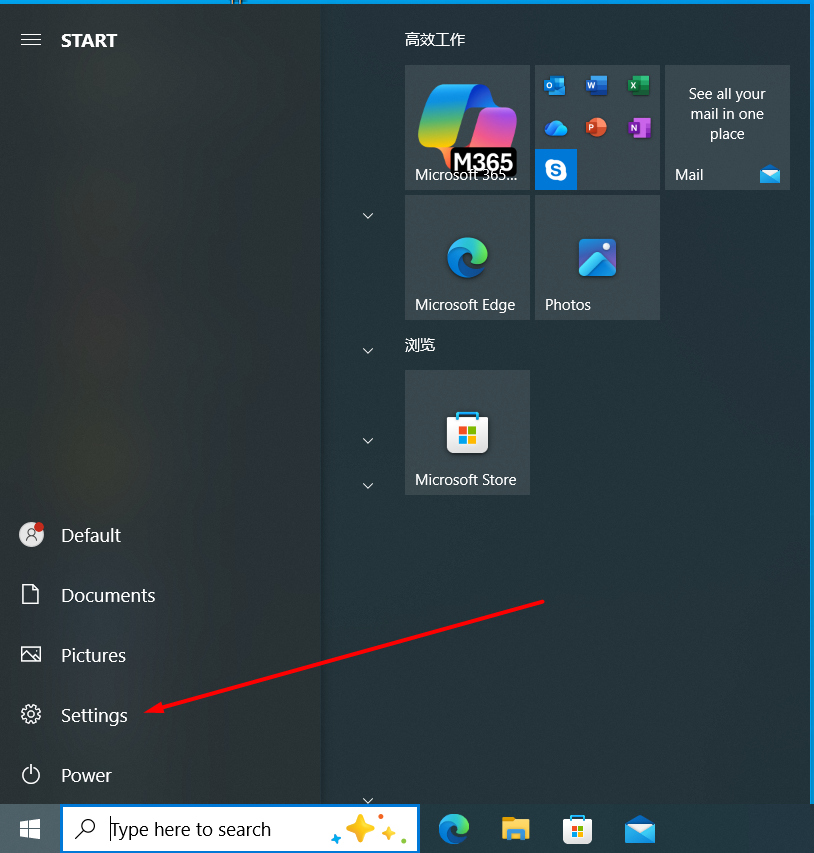
Step 1 — Open Settings from the Start menu (gear icon) or press Win + I.
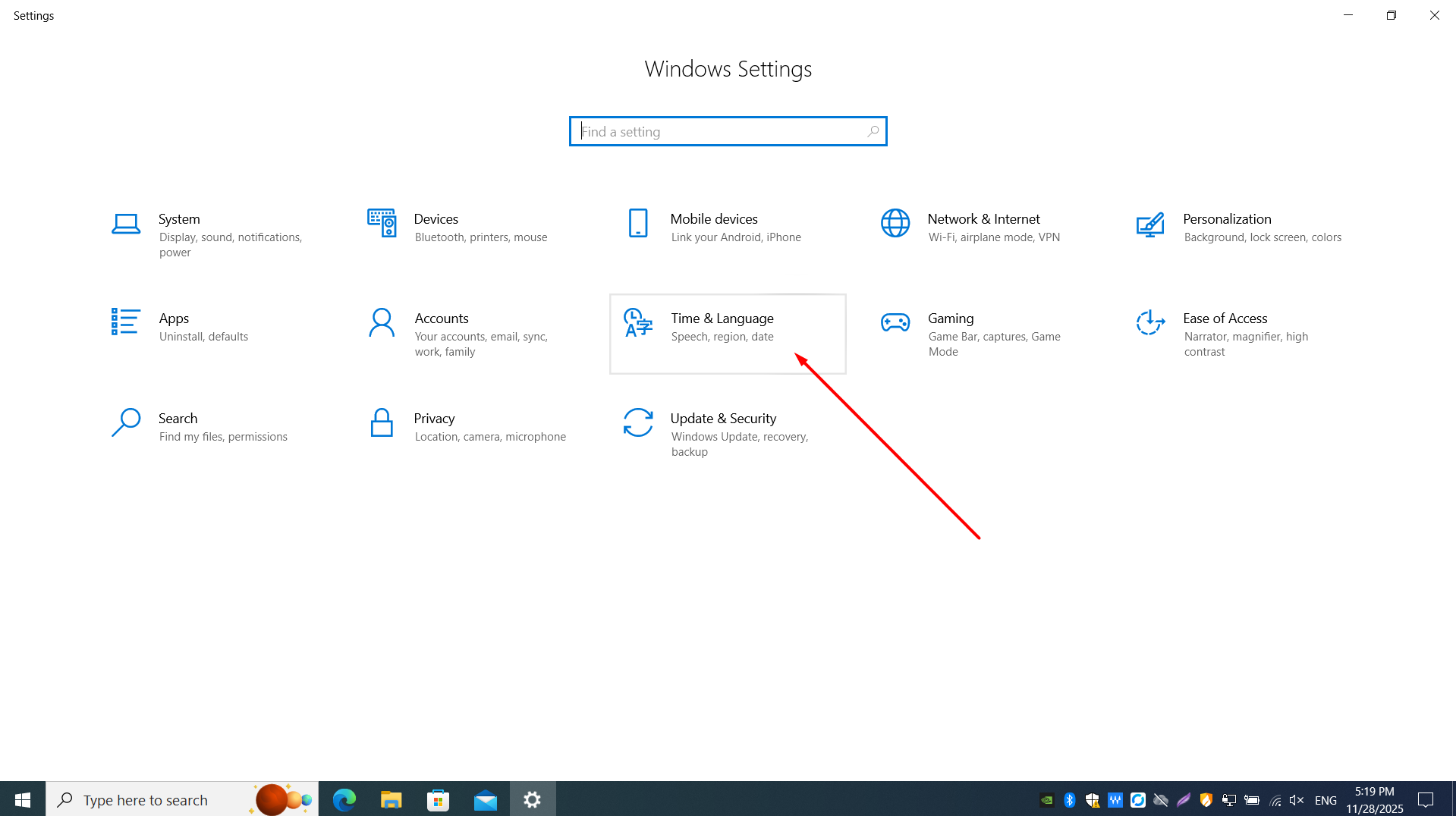
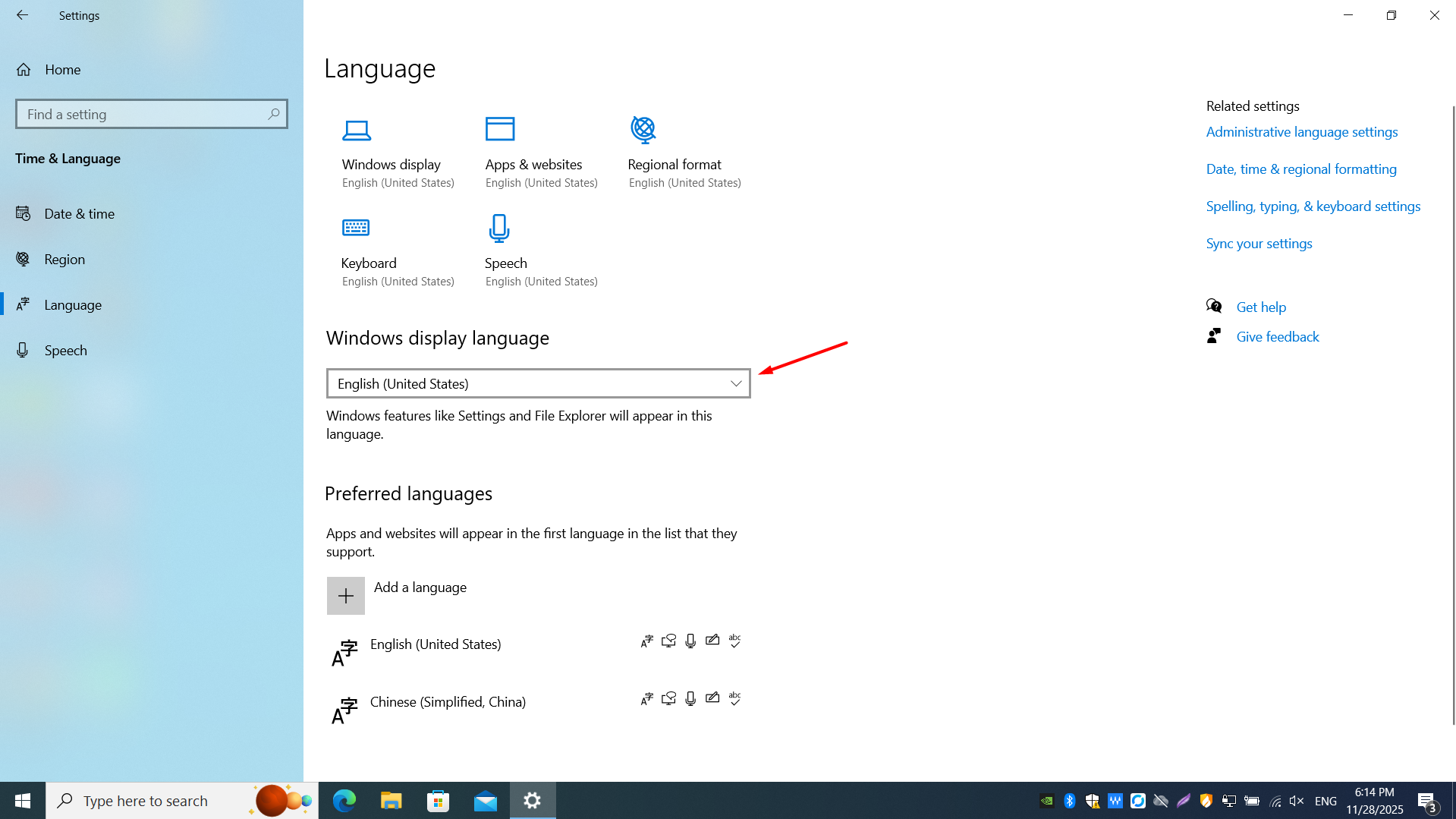
Step 2 — Go to Time & Language > Language (Win 10) or Time & language > Language & region (Win 11).
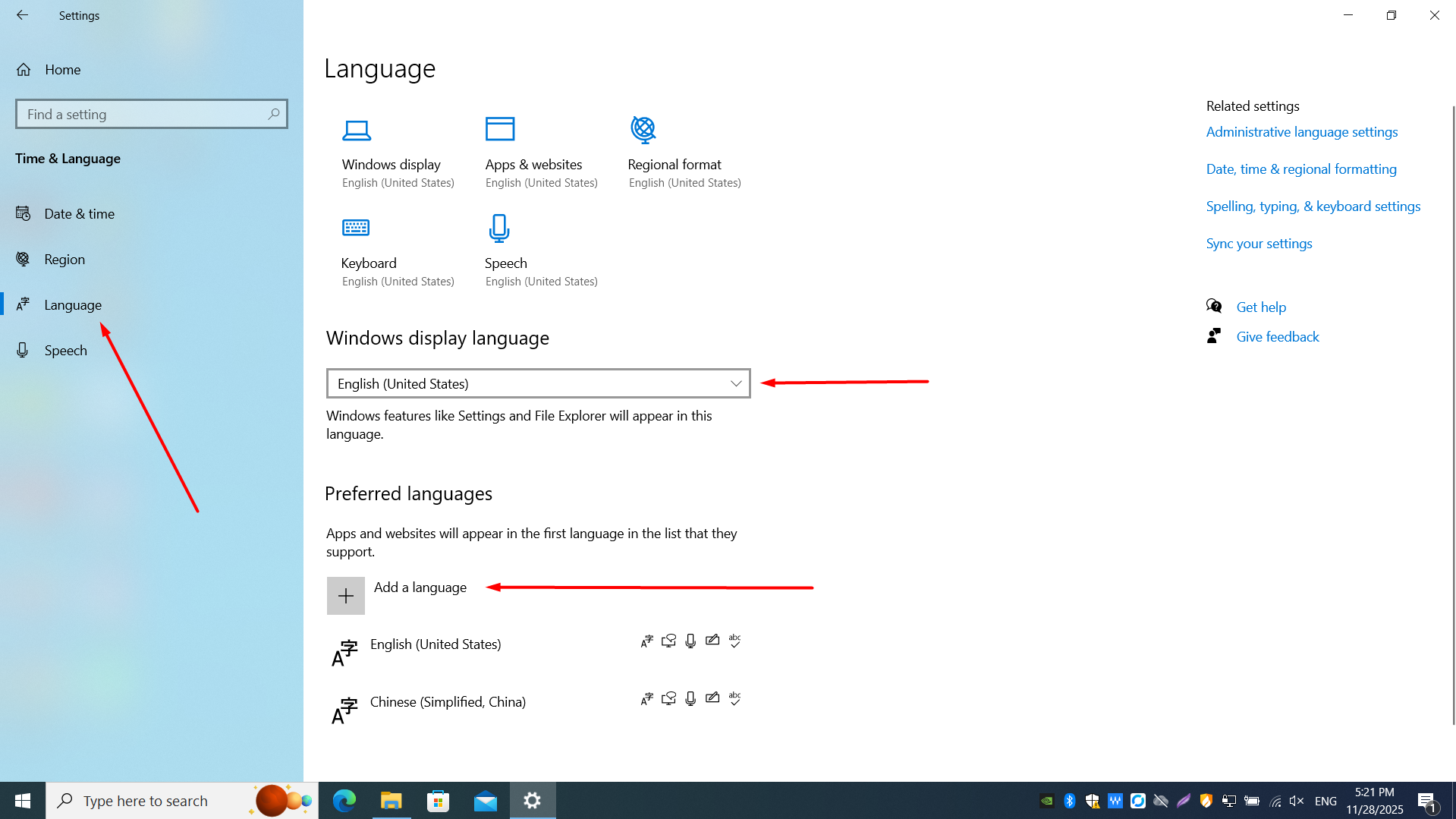
Step 3 — Review Preferred languages already on your PC (e.g., English).
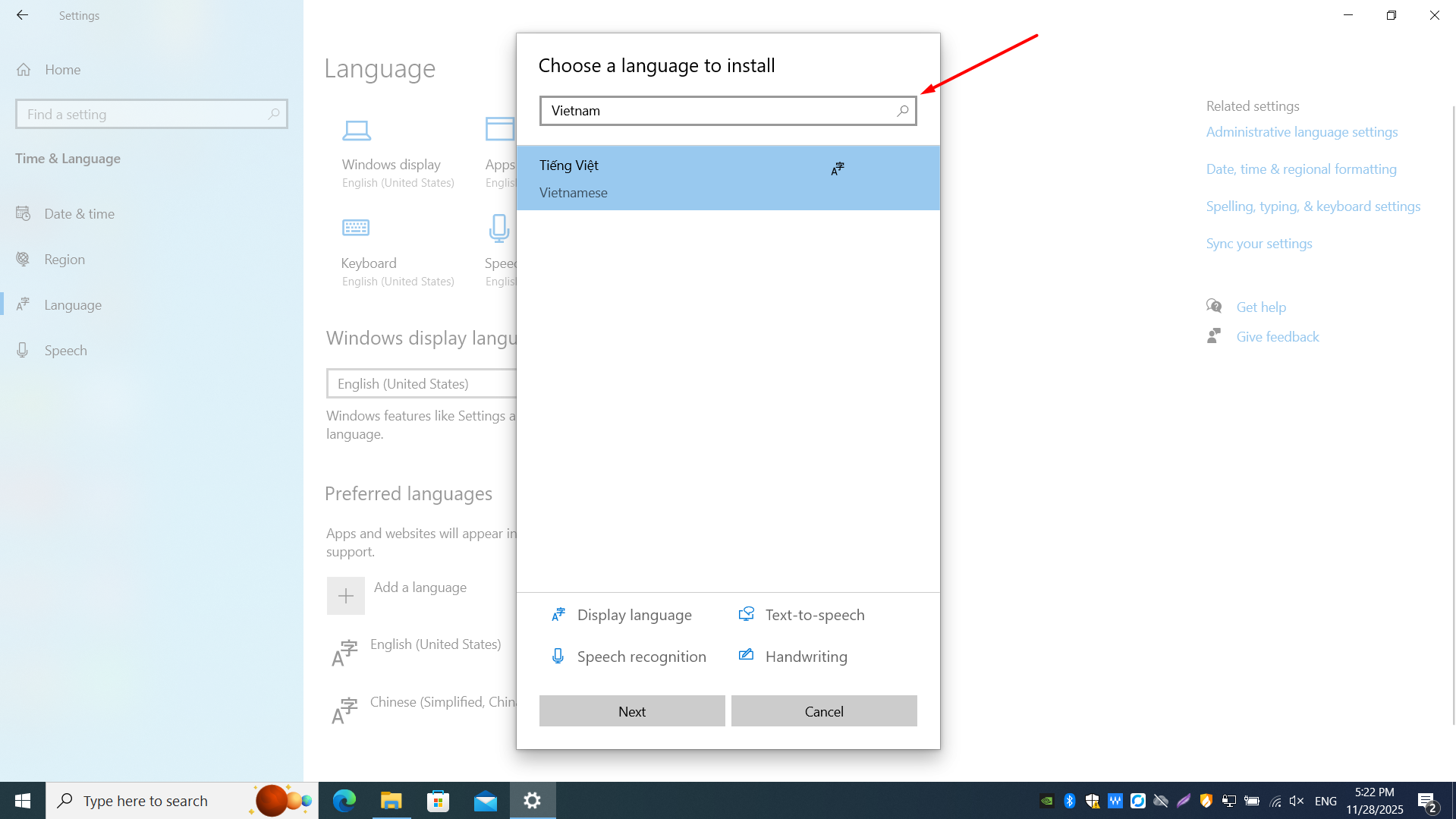
Step 4 — Click Add a language, then search and select (e.g., Chinese (Simplified), Spanish, French).
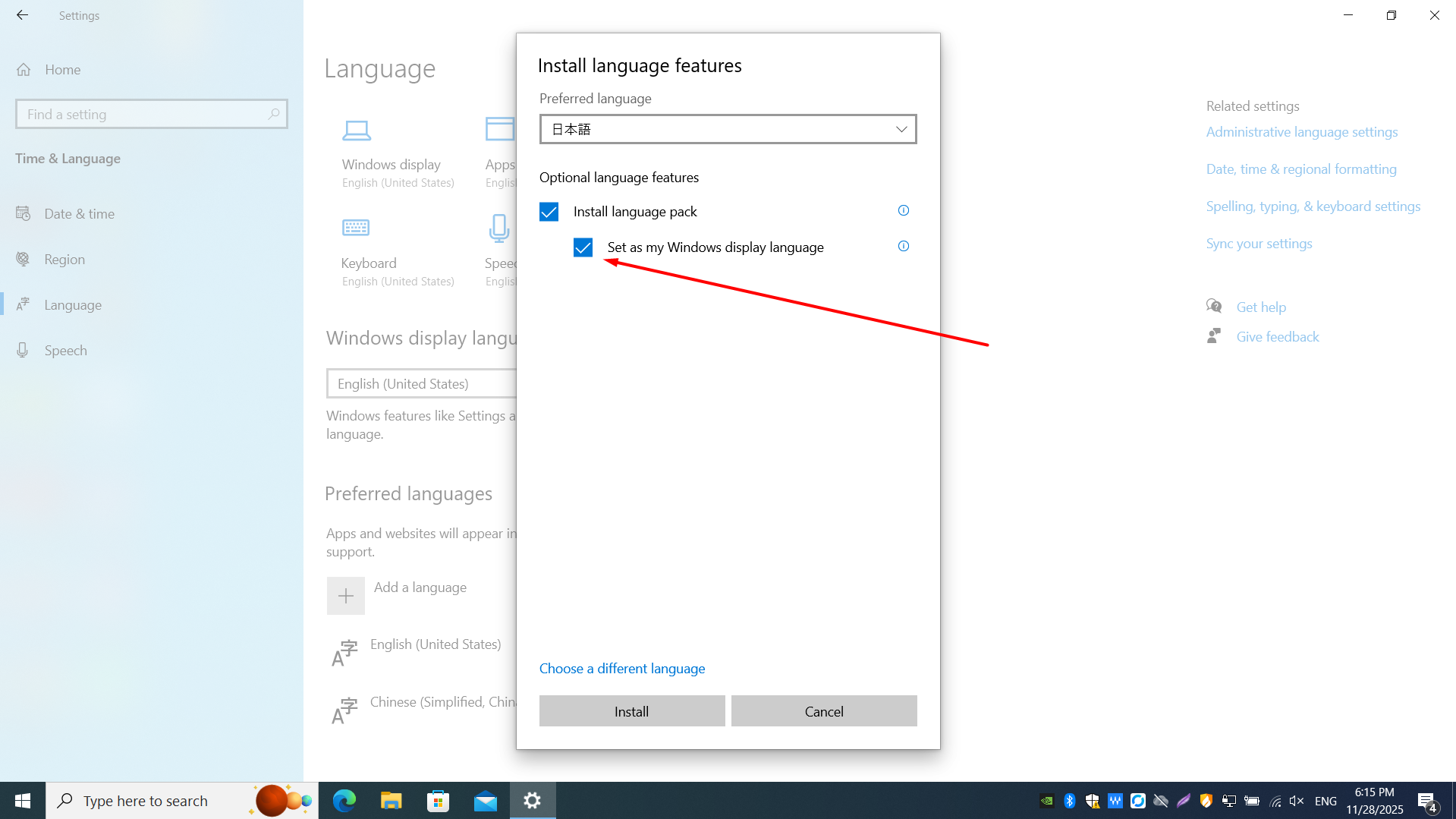
Step 5 — Check Install language pack (and optional speech/handwriting), then click Install.
Step 6 — Open the language Options > under Keyboards, click Add a keyboard (e.g., Microsoft Pinyin).
Windows 10
- Open Settings (
Win + I) > Time & Language > Language. - Under Preferred languages, click Add a language.
- Search for your language (e.g., Spanish, Chinese (Simplified)), select it, and click Next.
- Check Install language pack (and Text-to-speech if offered), then click Install. Wait for the download to finish.
- Click the language you added > Options > under Keyboards, click Add a keyboard to pick a layout (e.g., Microsoft Pinyin).
- Optionally drag languages in the list to set your default input order.
Windows 11
- Open Settings (
Win + I) > Time & language > Language & region. - Click Add a language, search for your language, check the box, and click Next.
- Select optional features (language pack, handwriting, TTS), then click Install.
- After installation, click the ⋯ (three dots) next to the language > Language options.
- Under Keyboards, click Add a keyboard and choose the input method you want.
- Use ⋯ next to a keyboard to remove or reorder layouts.
Switching input methods while typing
Win + Space— cycle through installed input methods (recommended).Alt + Shift— switch language/keyboard (legacy shortcut; still works on many PCs).Ctrl + Shift— alternate shortcut if enabled under Advanced keyboard settings.- Click the language bar on the taskbar (e.g., ENG or 中) to pick a layout from the menu.
- For Chinese Pinyin:
Shiftoften toggles between Chinese and English input within the same IME.
Tips
- Adding a language does not always change the Windows display language—you can type in Spanish while menus stay in English.
- To change the display language (menus and Settings), set Set as my Windows display language when installing the pack, then sign out or restart.
- If a keyboard layout feels wrong, open its Language options and confirm you selected the correct country variant (e.g., US vs. UK English).
- Remove unused languages under Settings to shorten the
Win + Spacecycle list.