- App name: Clock (often listed as Alarms & Clock on older Windows). One app bundles alarms, timers, stopwatch, world clock, and focus sessions.
- How to open: Press the Windows key, type
clockoralarms, then open Clock. You can also pressWin + R, typems-clock:, and pressEnter. - Navigation: Use the left sidebar to switch between Focus sessions, Timer, Alarm, Stopwatch, and World clock. Settings and optional sign-in are at the bottom.
- Alarms: Open the Alarm tab, then use + (or the add control) to create an alarm. In Add new alarm, set the time, optional name, repeat days, alarm sound, and snooze length, then Save. Turn alarms on or off with their toggles. Important: alarms usually ring only while the PC is awake—check the in-app notice and your power/sleep settings if you rely on alarms.
- Timer: Preset countdowns (e.g. 1 / 3 / 5 / 10 minutes) appear as tiles; use Start and Reset, and + to add a custom duration. Optional keep on top helps the timer stay visible.
- Stopwatch: Start, pause, and lap to record segments; Reset clears the run. The list can highlight fastest and slowest laps.
- World clock: Add cities to compare times; the map shows day and night regions. Use Add / Edit to manage locations.
- Focus sessions: A productivity mode that can mute notifications during a timed block. Complete the intro with Get started, set session length and breaks, then Start focus session. Signing in can link Microsoft To Do tasks to a session.
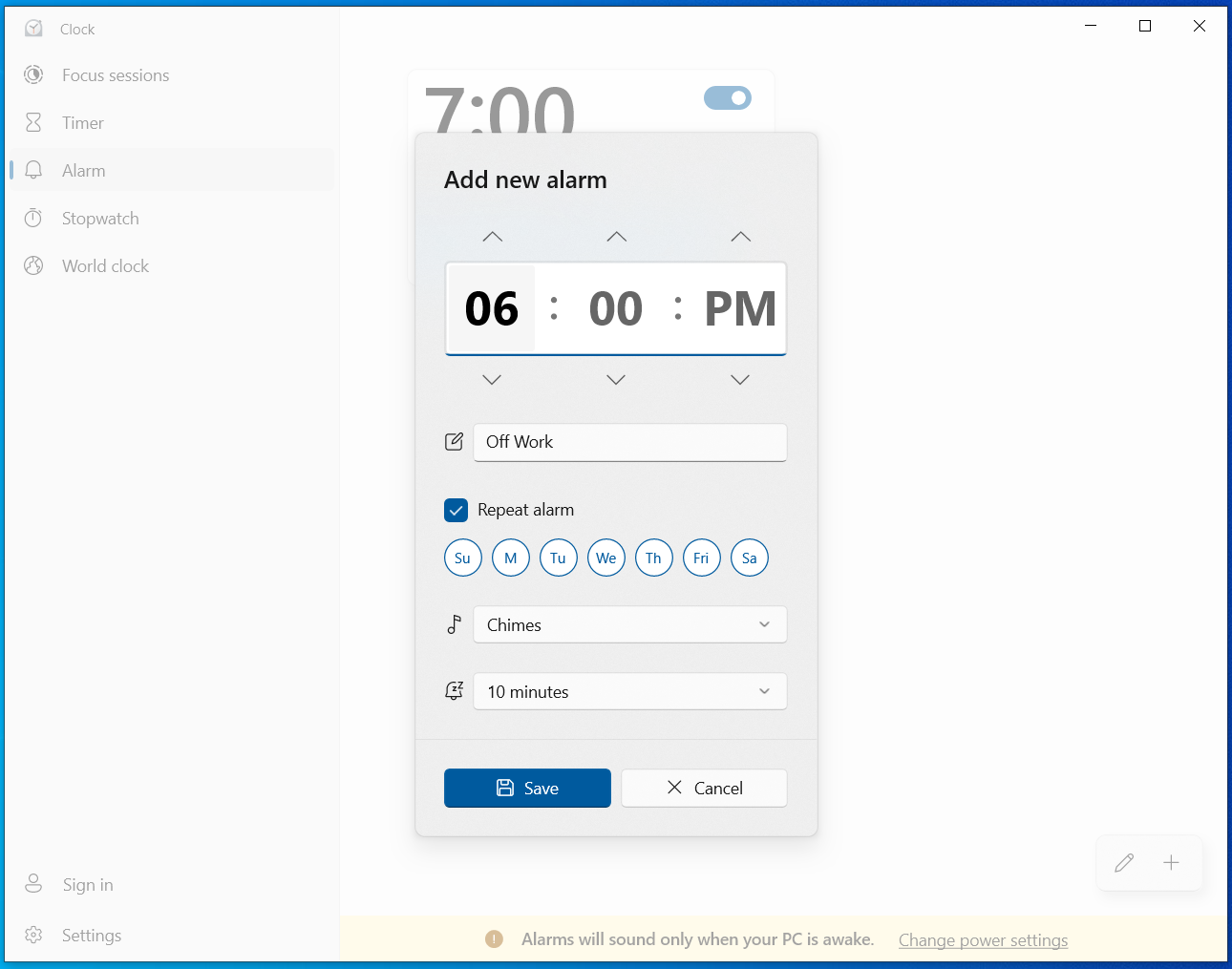
Alarm: Create alarms with repeat, sound, and snooze. The banner reminds you that alarms need the PC to be awake.
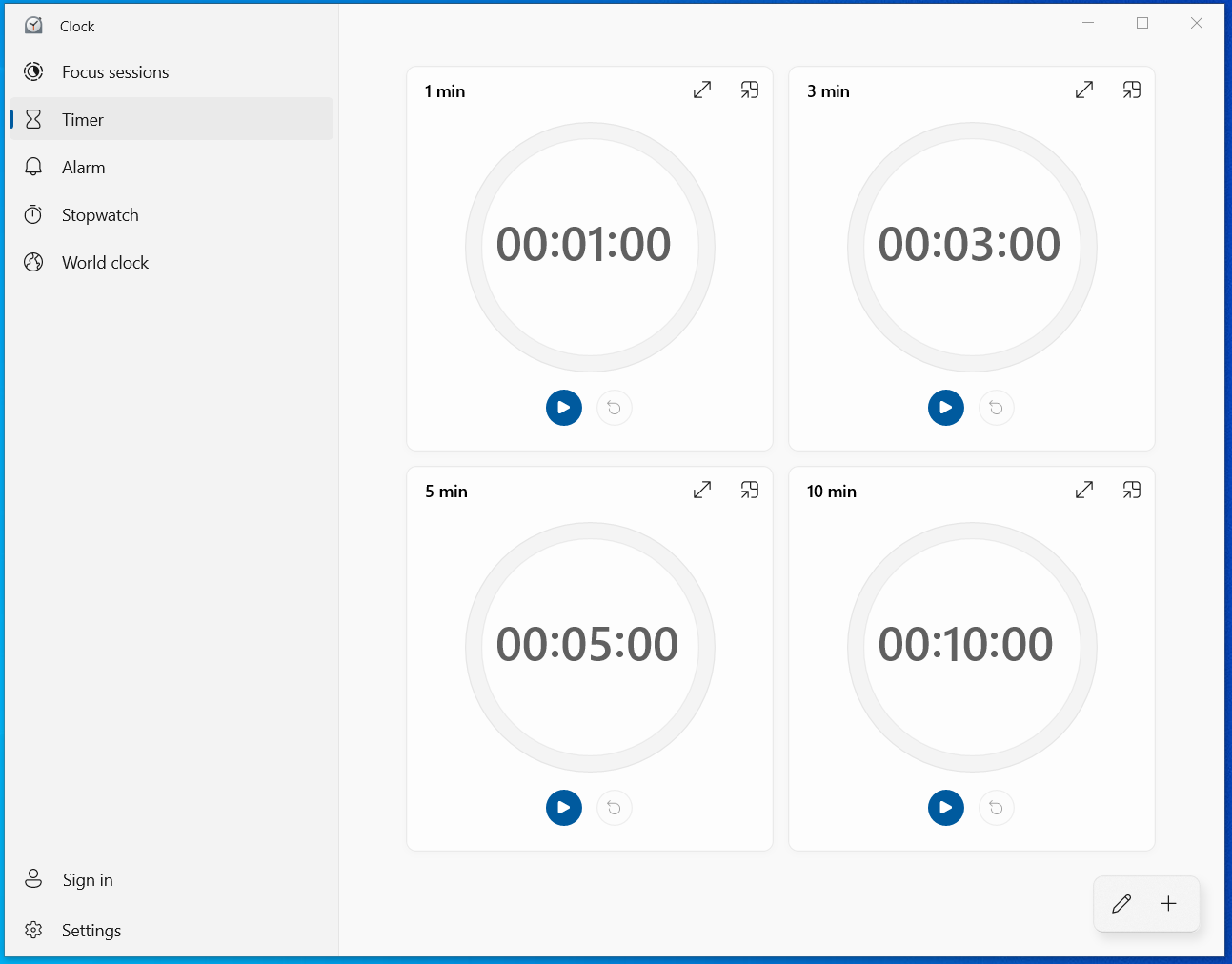
Timer: Quick presets or custom timers; pin the window on top if you need it visible over other apps.
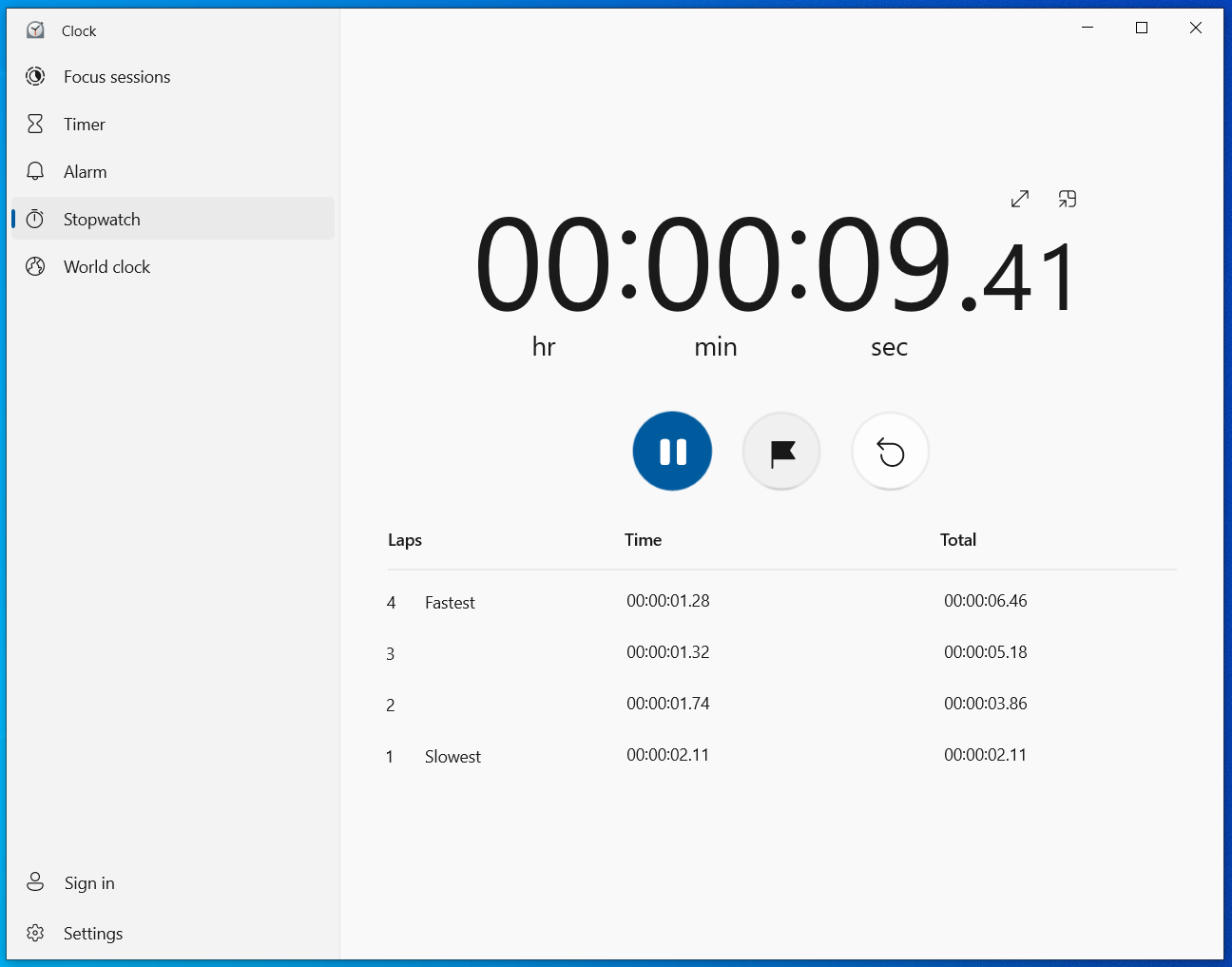
Stopwatch: Measure elapsed time and record laps for comparison.
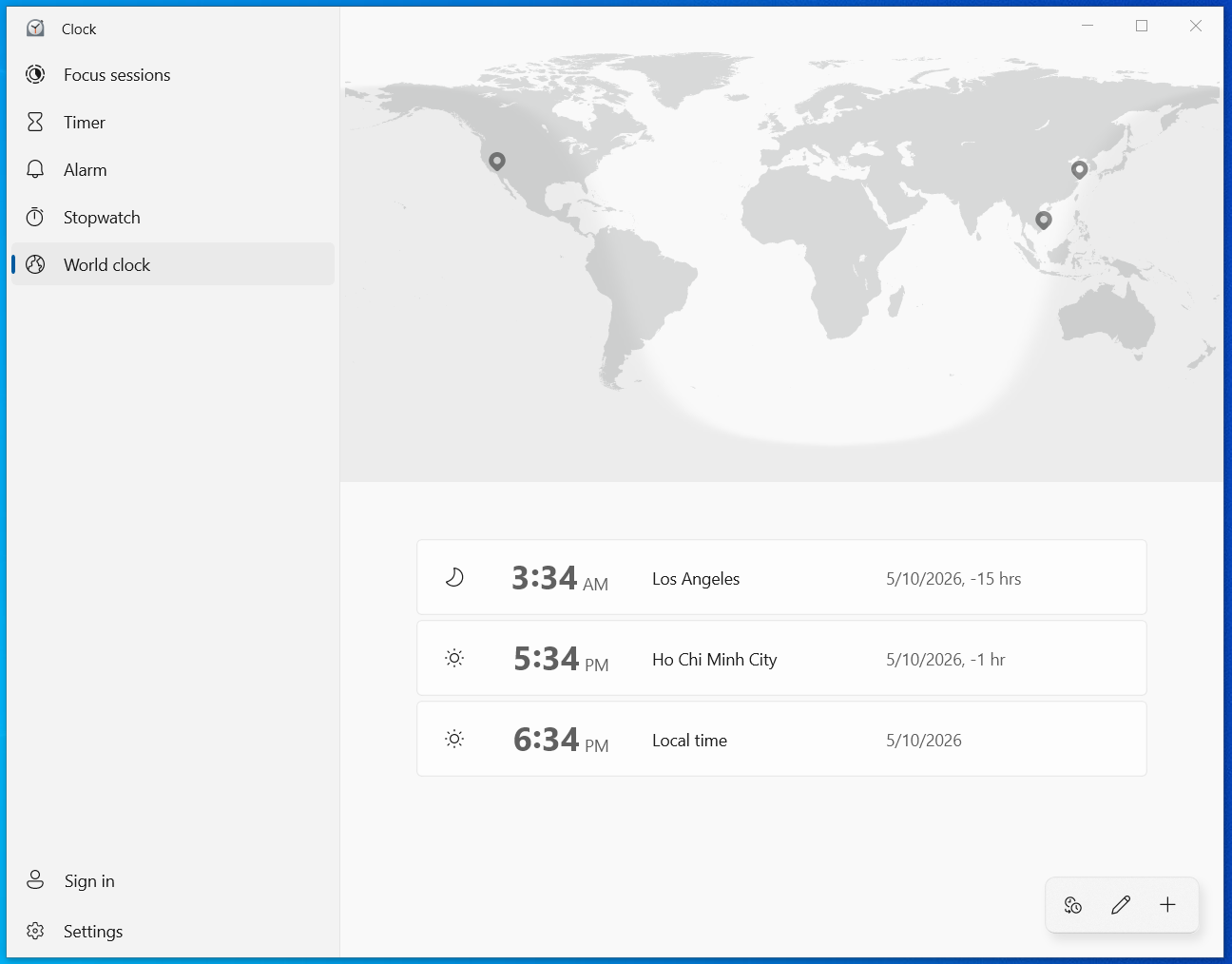
World clock: Track multiple cities and see day/night on the map.
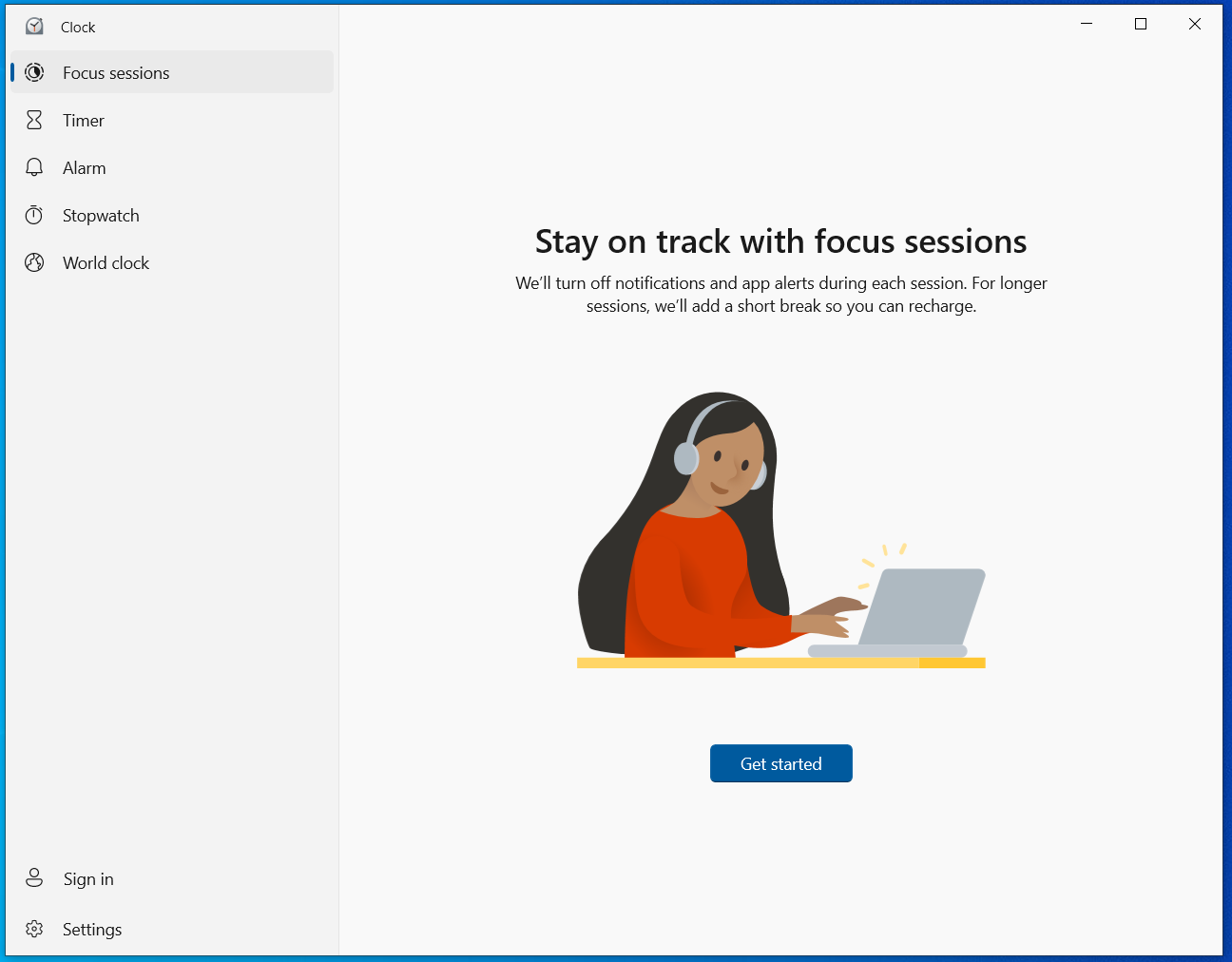
Focus sessions (intro): First-time overview—notifications can be quieted during a focus block.
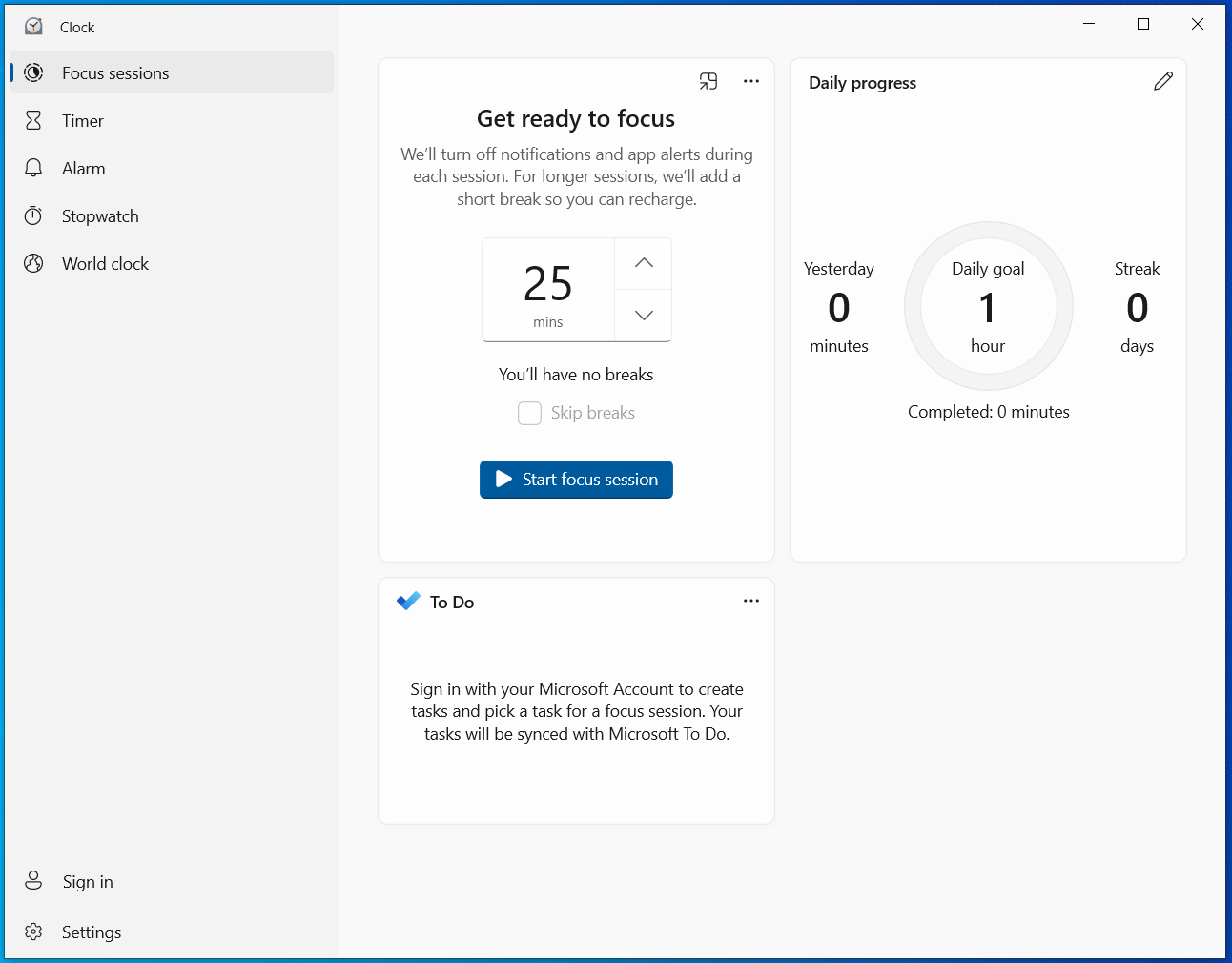
Focus sessions (dashboard): Set duration, breaks, daily progress, and optionally pick a task from Microsoft To Do.